Objectives:
1. Download and install Wireshark.
2. While doing certain activities on the internet and local network, use Wireshark to monitor the packet traffic that occurs.
3. After saving the packet traffic, examine them and look for data and information related to DNS, ICMP, and HTTP frames.
Equipment list: Computer, router, internet, and Wireshark software.
Notes and Observations: This assignment definitely took some time to work through. The analogy that our instructor used I think made a lot of since here. He said that this would be like dissecting a frog, you obviously see the organs inside the frog, but you would not have a clue what each one is. That is what this assignment felt like. There was a lot of data and information this program can show you, and I really don’t know what a huge portion of it was or what it meant. Thankfully he wanted us to focus on certain things instead of the whole picture of what this program can show us.
The first activity I did was to go to a website outside of my network. I went to ign.com . The second activity I did was releasing my IP address, the third was renewing my IP address. The fourth activity I did was a ping test with my router. The final activity I did was do a tracert for www.nus.edu.sg . I did this because I was curious to see what Wireshark would show when doing a tracert.
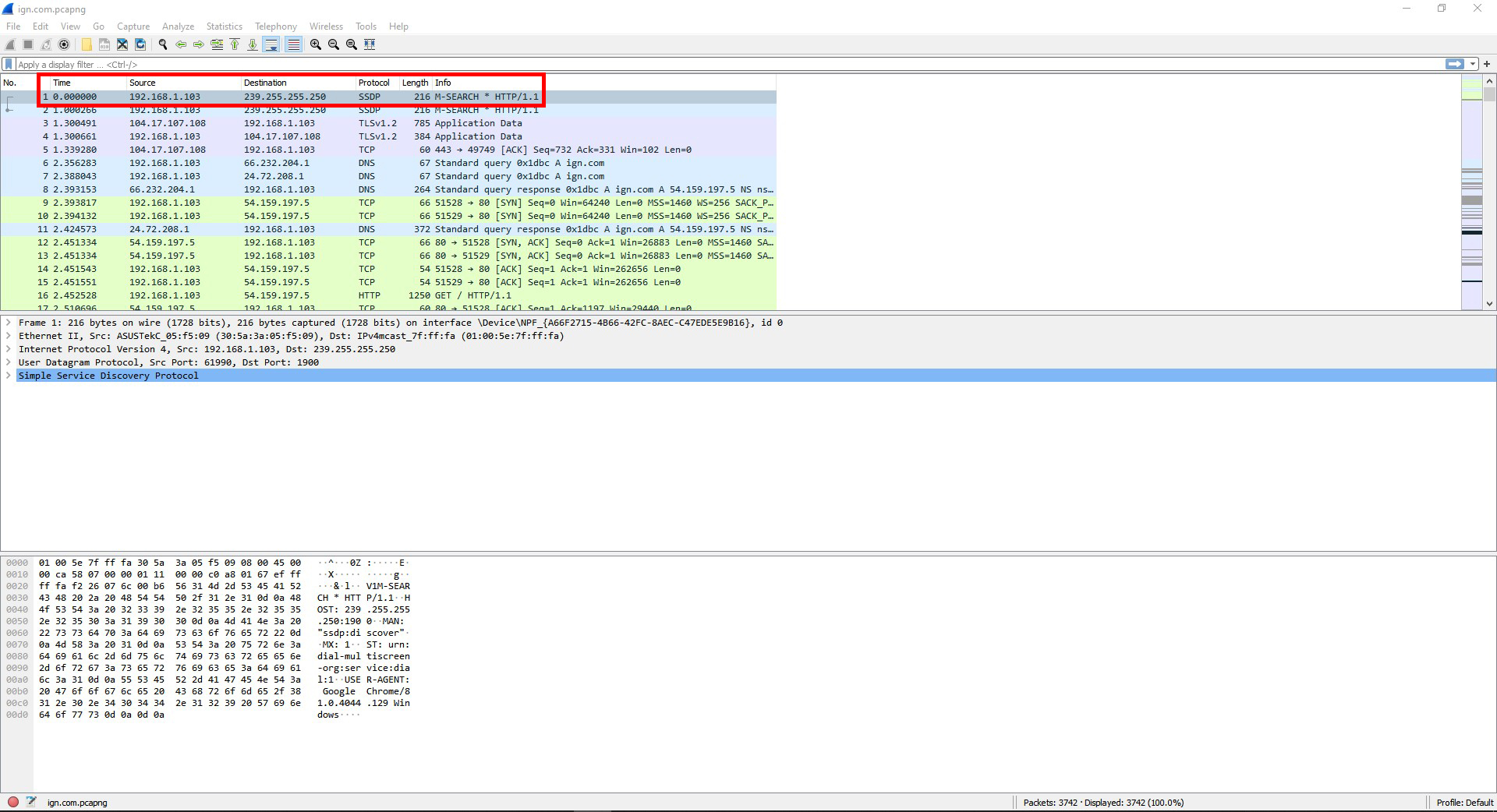
Question #1: In the top pane, select any packet to see its contents. Find the frame’s protocol type, length, source & destination address information.
The frame’s protocol type is a SSDP.
The length is 216.
The source address is 192.168.1.103 .
The destination address is 239.255.255.250 .
Question #2: Locate sequence numbers used by a TCP segment. What protocol type did you see? What sort of numbers did you find? What is the purpose of these numbers? View other protocol header information. List the field names and field values (the information contained inside) of one of the protocol headers such as IP, TCP, or UDP.
The protocol types I saw was TCP, IPv4, and Ethernet II.
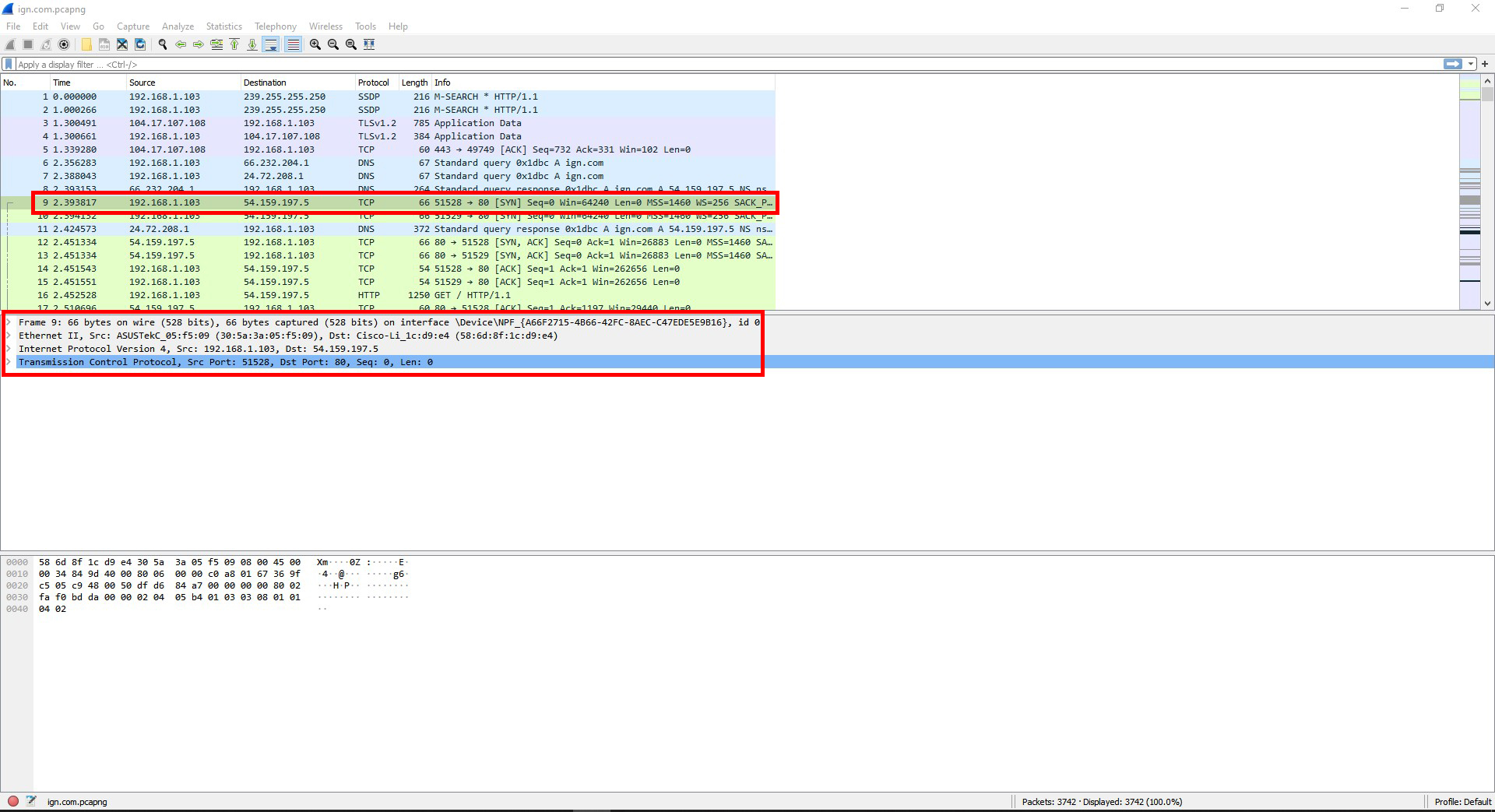
I found following numbers for the protocols:
TCP source and destination ports, sequence, and length.
IPv4 source and destination IP addresses.
Ethernet source and destination IP addresses.
The purpose of the port numbers is to show what ports were used for that packet and its datatype. The IP addresses show where the packet came from and where it was sent to.
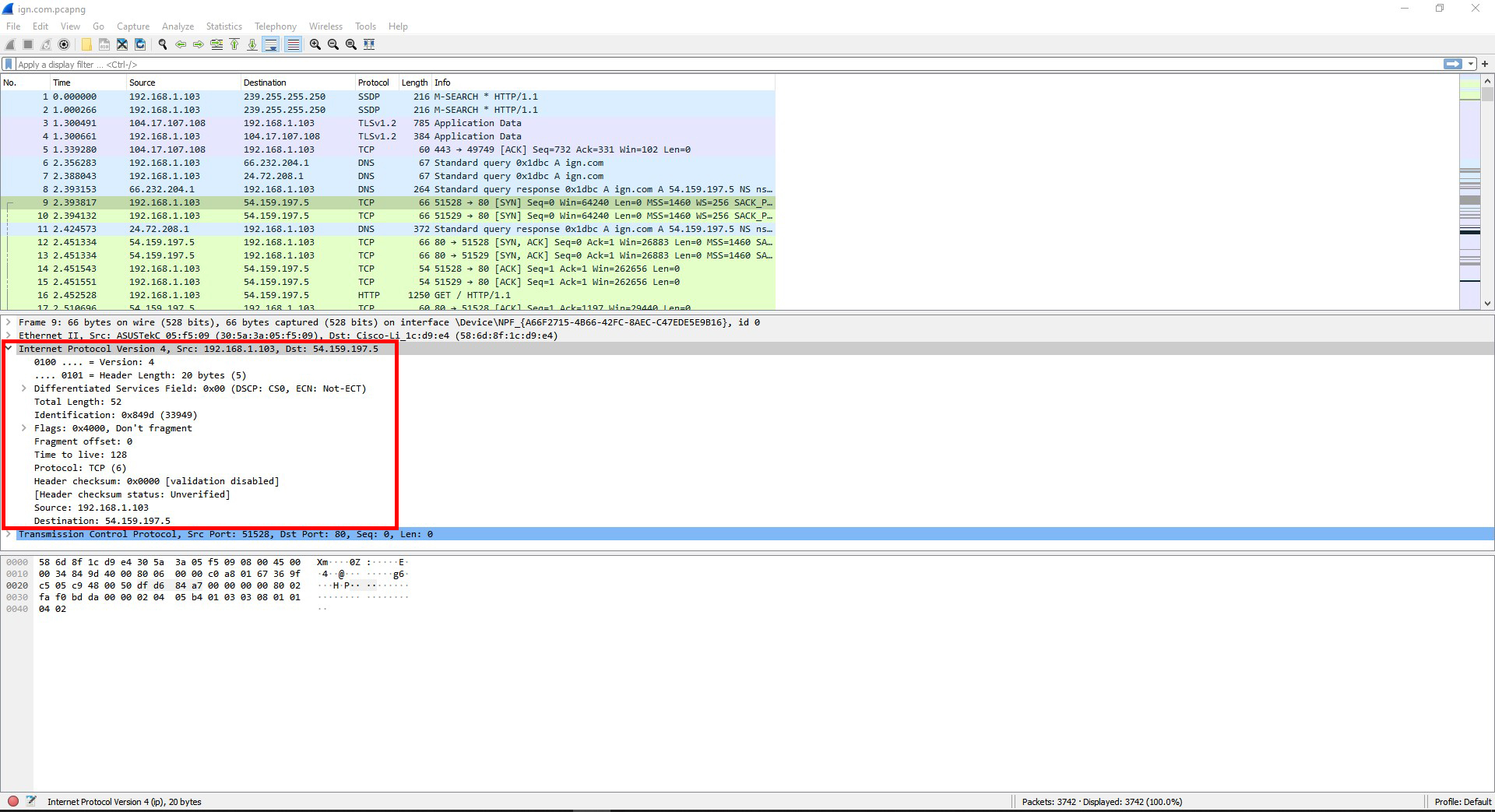
I looked in the IPv4 header and this is what I found:
Internet Protocol Version 4, Src: 192.168.1.103, Dst: 54.159.197.5
0100 …. = Version: 4
…. 0101 = Header Length: 20 bytes (5)
Differentiated Services Field: 0x00 (DSCP: CS0, ECN: Not-ECT)
Total Length: 52 Identification: 0x849d (33949)
Flags: 0x4000, Don’t fragment
Fragment offset: 0
Time to live: 128
Protocol: TCP (6)
Header checksum: 0x0000 [validation disabled]
[Header checksum status: Unverified]
Source: 192.168.1.103
Destination: 54.159.197.5
Question #3: In the top pane, choose to view another frame that has a different kind of protocol listed than the one you just viewed. Compare the information you found to the previous.
I clicked on a DNS packet and there was 2 things that were different. The 1st was that instead of having a TCP header, it had a UDP header. The 2nd thing was that it had a DNS query in it that the TCP frame did not have. The details for the IPv4 and Ethernet II were different also.
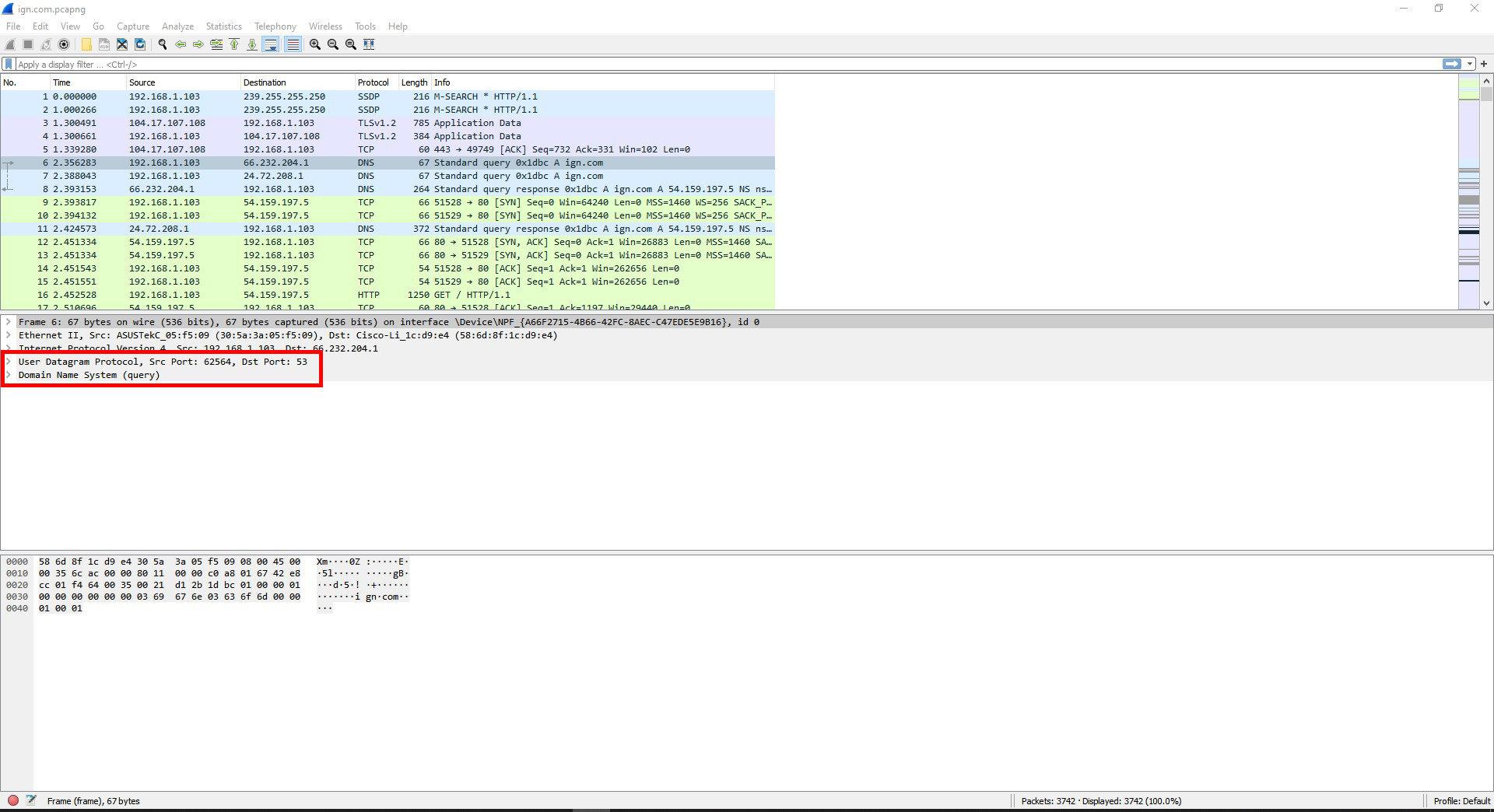
Question #4: Find a frame containing a DNS query. (If none is visible, try pinging a different website while recapturing packets.) What protocols are encapsulated in this frame? Which of these protocols is a transport layer protocol? What is DNS used for?
The protocols that were encapsulated were DNS, UDP, IPv4, and Ethernet II.
The protocol for the transport layer is UDP.
DNS is the protocol that links a domain name to the IP address for its website.
Question #5: Find a frame containing ICMP information. What protocols are encapsulated in this frame? Which layer does ICMP reside in? What do the ICMP initials mean and what is it used for?
The protocols encapsulated in this frame are ICMP, IPv4, and Ethernet II.
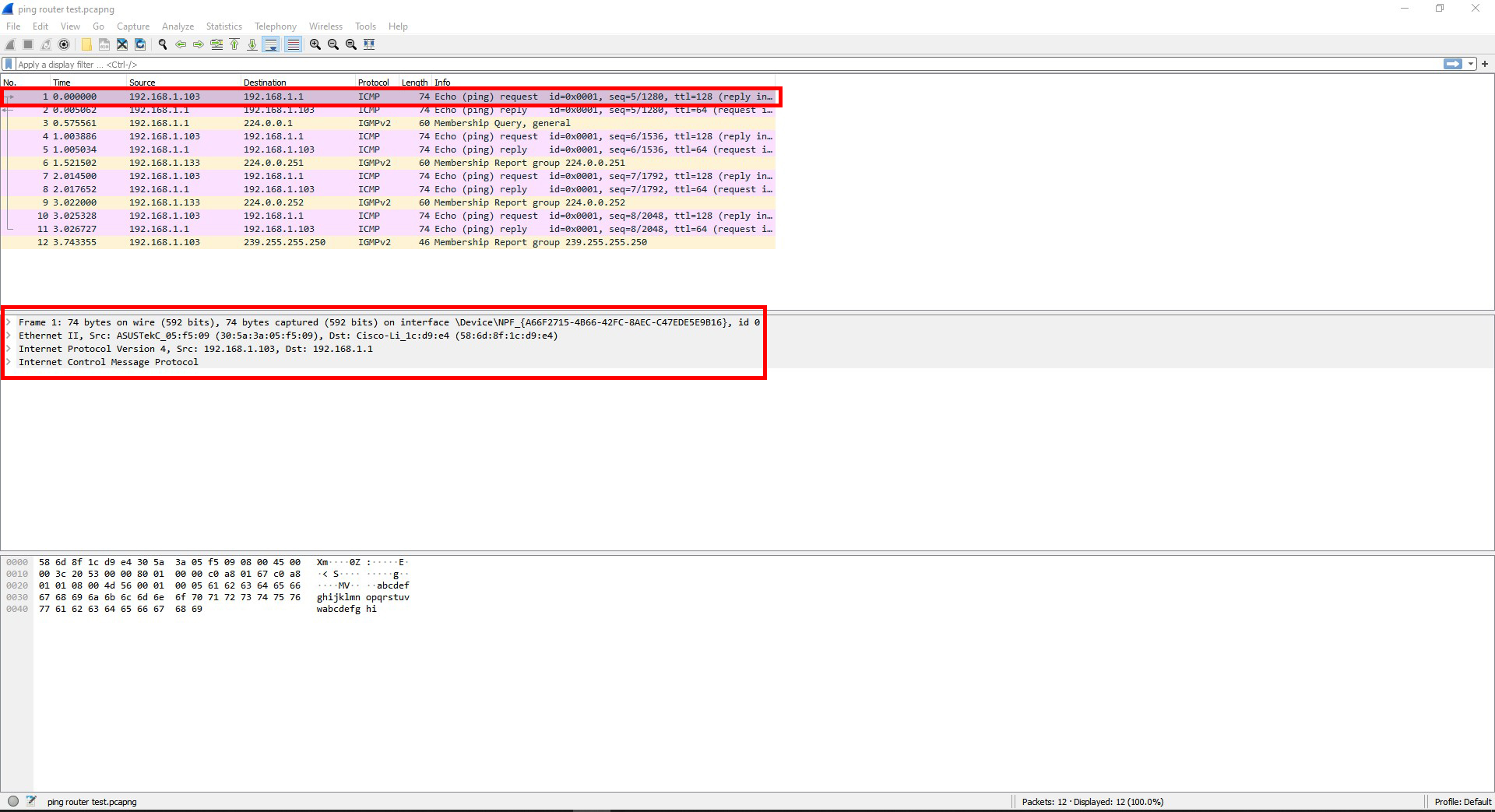
ICMP is on layer 3 (Network).
ICMP stands for Internet Message Control Protocol, and is used for reporting errors when data or packets have trouble getting to their intended device.
Question #6: Find frames containing HTTP information. Approximately how many frames did it take to download the web page? List the different protocols that are used. Note how many different protocols are working together to find and retrieve the information shown on one web page. All of this is going on behind the scenes with every page you see.
The frame I looked at took 2169 frames to download the webpage.
The different protocols involved were DNS, HTTP, SSL, TCP, TLS v1.2, and TLS v1.3.
This would be 6 different protocols being used just for the webpage.
Question #7: Open the first frame carrying a HTTP GET request packet. What protocol headers do you see? List three field names from each of the headers. Within the HTTP header, find and record the User Agent information. Which layer does each of the protocols belong to?
The protocol headers are HTTP, TCP, IPv4, Ethernet II, and Frame 128.
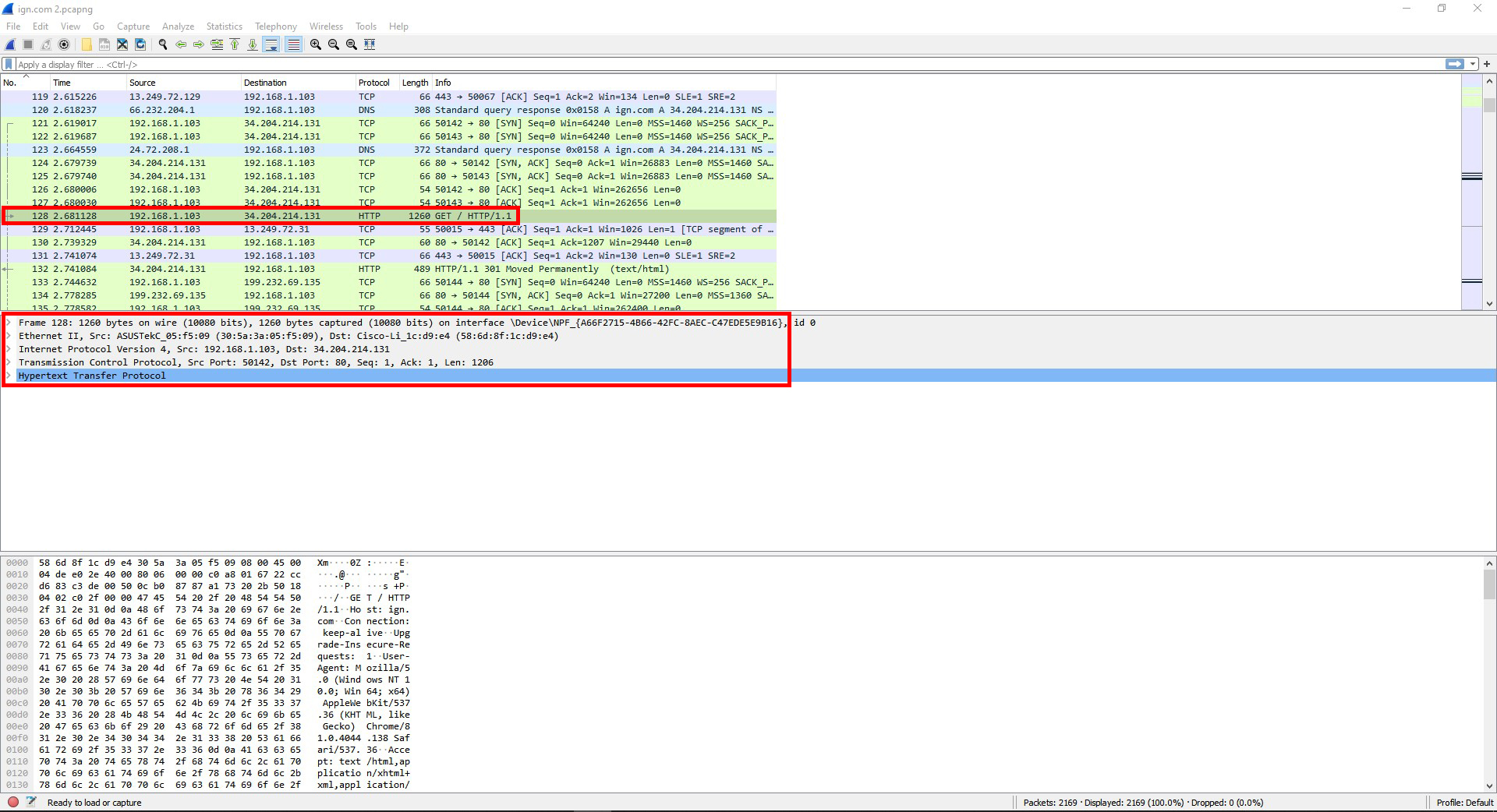
For HTTP there is Host, Connection, and Upgrade-Insecure-Requests.
For TCP there is Source Port, Destination Port, and [Stream index]
For IPv4 there is Differentiated Services Field, Total Length, and Identification.
For Ethernet II there is Destination, Source, and Type.
For Frame 128 there is Interface id, Encapsulation type, and Arrival Time.
This was the information for the user information field:
User-Agent: Mozilla/5.0 (Windows NT 10.0; Win64; x64) AppleWebKit/537.36 (KHTML, like Gecko) Chrome/81.0.4044.138 Safari/537.36\r\n
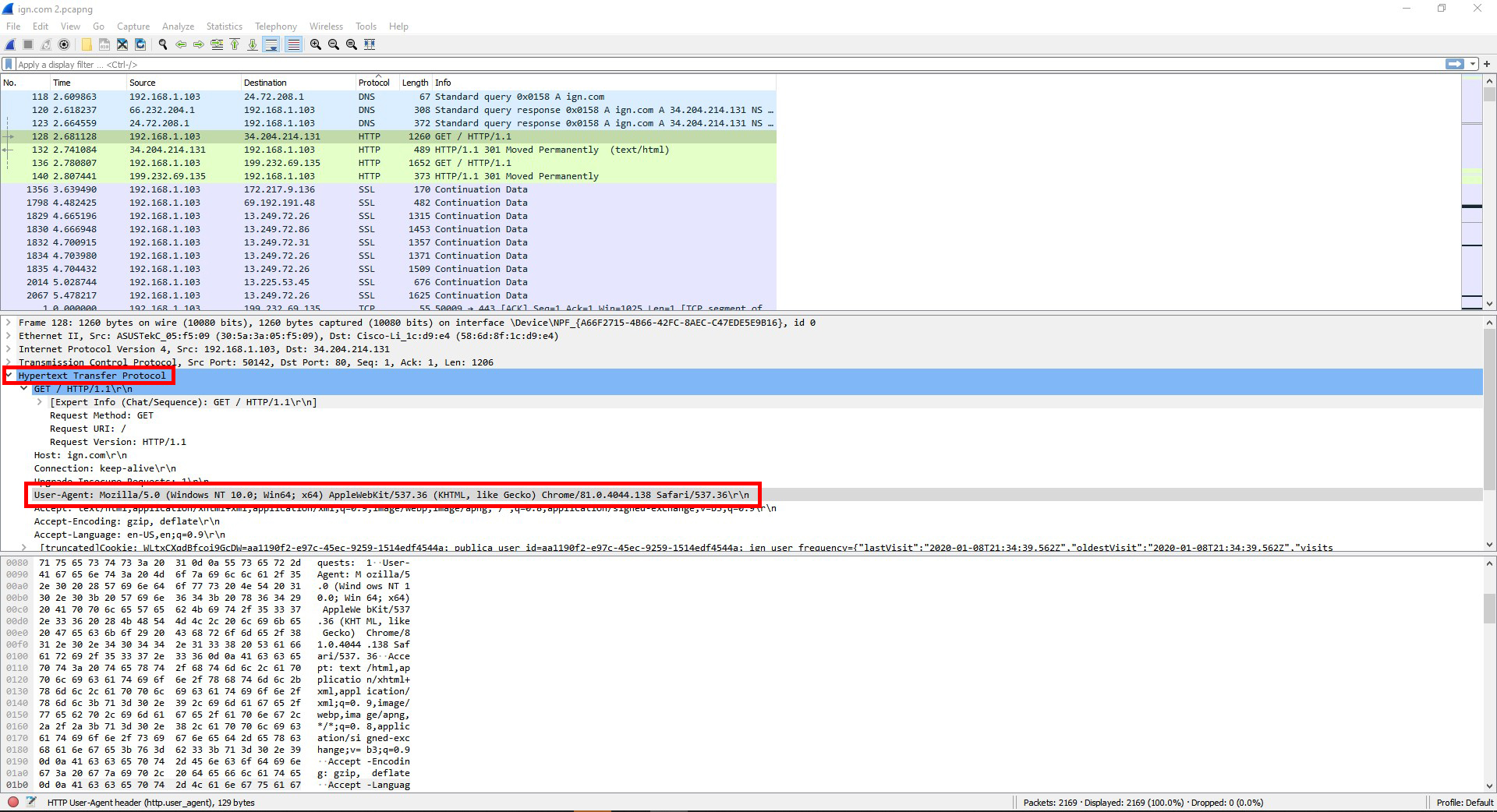
HTTP is on layer 7 (Application).
TCP is on layer 4 (Transport).
IPv4 is on layer 3 (Network).
Ethernet II is on layer 2 (Data Link).
Frame 128 I’m guessing is on layer 1 (Physical)
Question #8: Open the first HTTP Response frame. Find the type of web server being accessed in this frame’s header.
It was an Apache server.

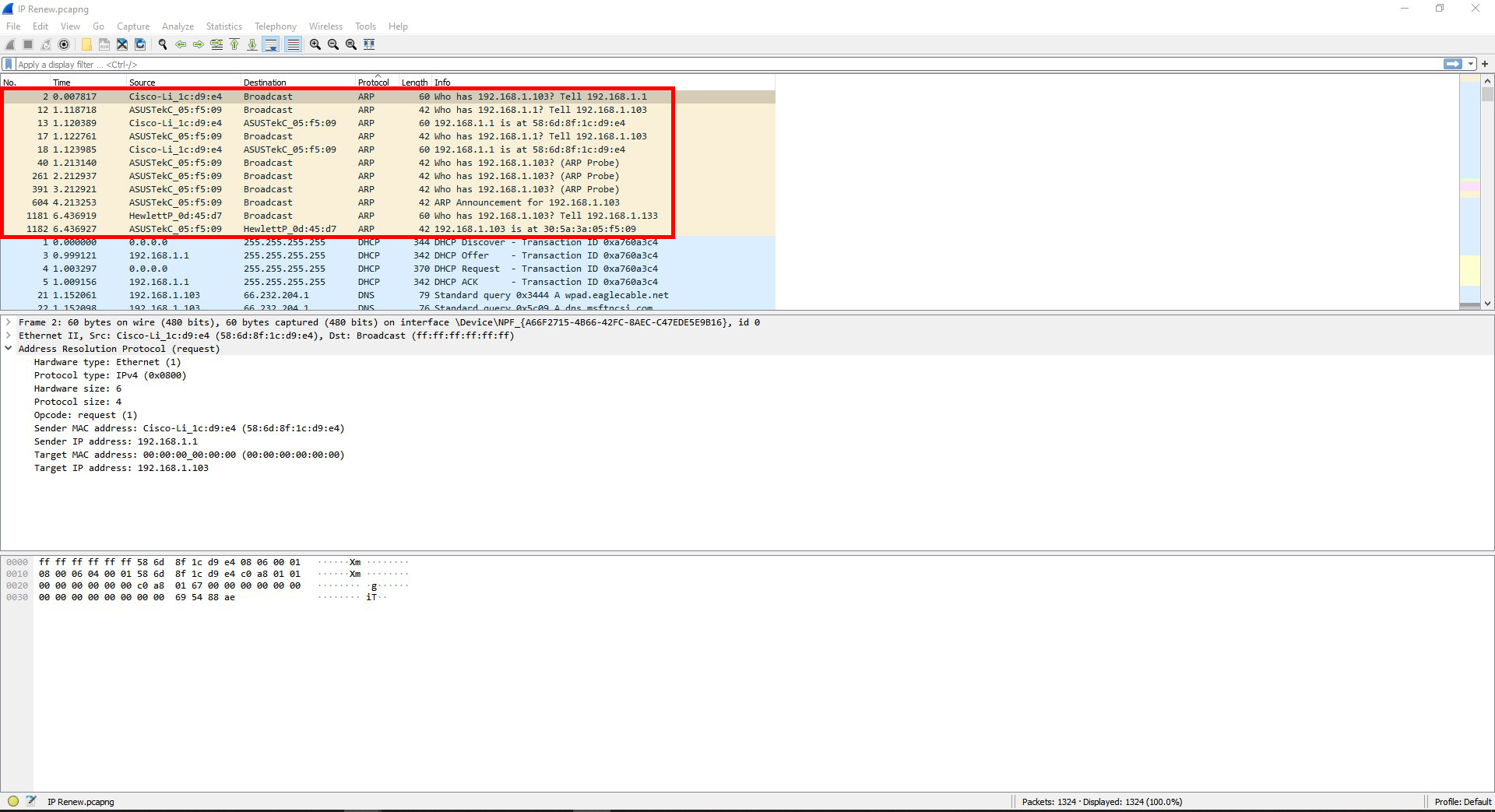
Question #9: Find a pair of frames that show an ARP request and an ARP response. Explain these frames and what they are doing.
The frames are showing the router and computer getting each other’s mac addresses.
Question #10: Find the frames that show DHCP configuring IP addresses. What is the process for a machine to be assigned an IP address using DHCP? ((Look up “DHCP handshake” online to compare what you see & what is expected.).)
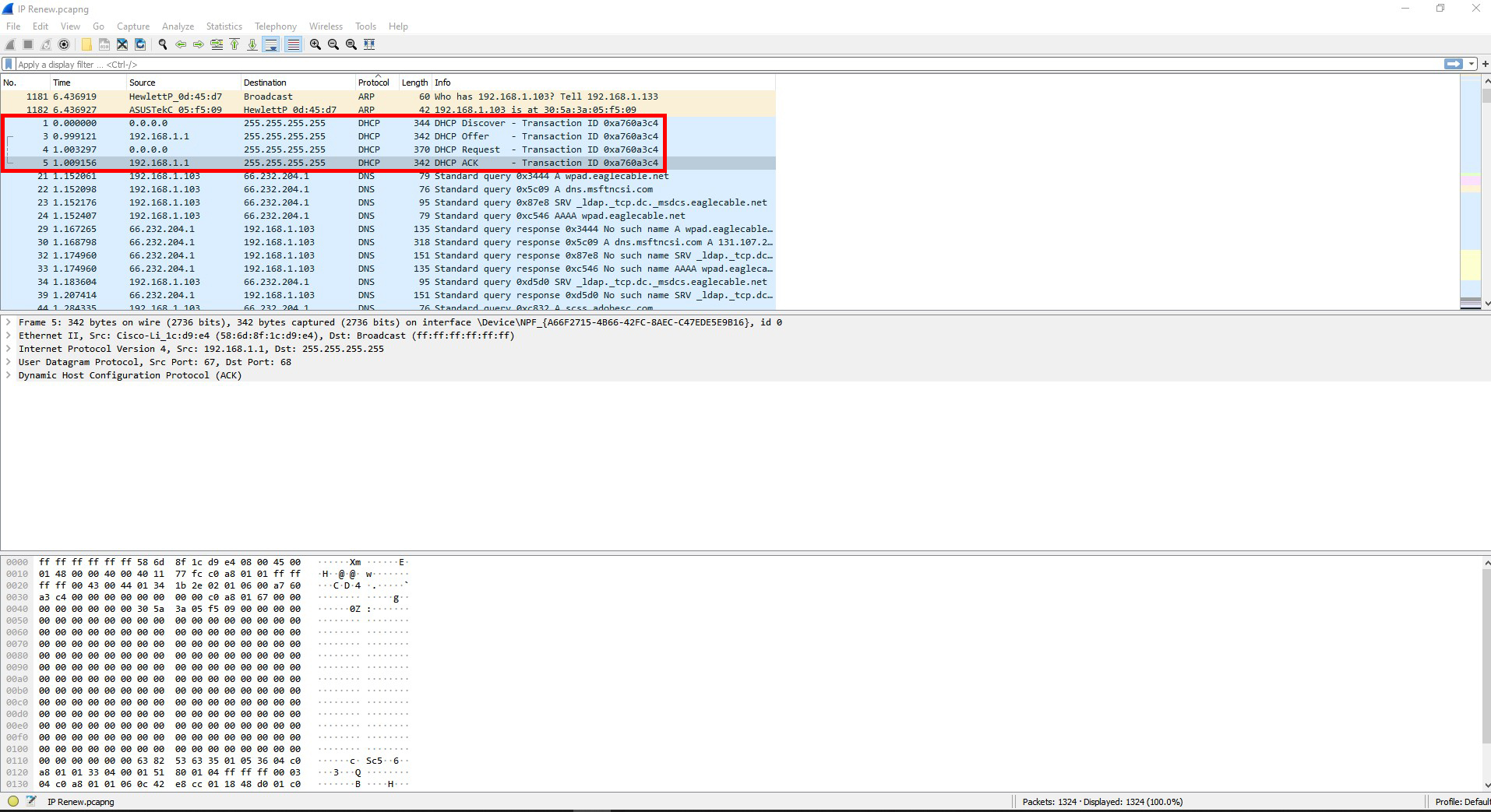
Question #10: Find the frames that show DHCP configuring IP addresses. What is the process for a machine to be assigned an IP address using DHCP? ((Look up “DHCP handshake” online to compare what you see & what is expected.).)
Here are the steps to the DHCP process:
Step 1. The device will send out a DHCP message to the DHCP server for the network its connected to.
Step 2. The DHCP server receives the message and responds back to the device with an IP address. It might offer it other options as well.
Step 3. The device will then respond by requesting the given IP address or one of the other options if given.
Step 4. The DHCP server confirms the IP address and assigns it to the device.
Question #11: What is the purpose of TCP sequence numbers?
TCP sequence numbers organize the data so that the process of sending and receiving data is more reliable.
Question #12: What is the purpose of IP source & destination addresses?
IP source and destination address are what networks use to be able to send and receive data and information to and from each other.
Question #13: What is the purpose of DNS?
DNS is the protocol that links the domain name of a website to its IP address. Remembering a domain name is typically easier than remembering an IP address.
Question #14: What is DHCP?
DHCP is the protocol that automatically assigns IP address to devices when connected to the internet.
Question #15: What the relationship between the OSI model of networking and the real-world TCP/IP model we saw in this lab activity? The OSI model layers 7, 8, and 9 are just the Application layer with TCP/IP.
Question #16: What evidence of layered network design did you discover when examining the captured data? How does the Wireshark data demonstrate encapsulation?
The evidence I saw was that each kind of packet had several layers that it had to pass through.
Wireshark showed this by breaking down the packets by the layers that it had to pass through.
Question #17: What are the implications of having a tool like Wireshark freely available? For network administration? For security?
This program being easily accessible could have both very good and very bad consequences. This could be used for security or network defense. At the same time it could be used to spy and snoop on the activity of a network.
For network administration I could see this being used to figure out problems with a network. This could range from something as simple as a device not working with the network, to trying to find evidence of a suspected network breach.
This could be good from a security perspective since it can monitor everything that is going on with a network.
Diagrams, flowcharts, and figures: N/A
References:
https://www.computerhope.com/jargon/i/icmp.htm
https://www.speedcheck.org/wiki/dhcp/
https://madpackets.com/2018/04/25/tcp-sequence-and-acknowledgement-numbers-explained/
Conclusions: This really showed me what is possible with a packet sniffing program. Before this I never heard of a program like this, so this is totally new to me. Knowing what programs like this can do slightly changes what I think about regarding network security.
 Tyler's Hardware and Network Fundamentals Site